Gosling, the Lite edition
Gooseplicant ships as one kit with two web apps on the same server, API and database: the full HR app, and Gosling, the Gooseplicant file browser, which sorts applicants by location and then position. The EDITION setting decides whether you run both or Gosling only.
The two editions#
| Concern | EDITION=full (default) | EDITION=lite |
|---|---|---|
/ats/ | The Gooseplicant HR app | Redirects (302) to /ats/lite/, as does every HR-app path |
/ats/lite/ | Gosling, alongside the HR app | Gosling |
| API | Everything | The Gosling subset; other routes answer 404 not_in_edition |
| Modules | As configured in Settings | audit and retention only; the others are off whatever Settings say |
/ats/ingest | On | On: your website form keeps posting applications |
The edition is deployment configuration, not a workspace setting: it's what you chose to run, so it lives next to your secrets rather than in the app. If you use a different BASE_PATH, replace /ats accordingly.
What Gosling does#
- Folders: All applicants, Needs sorting, then each location (your sites) with counts, in the order admins set (Reorder locations), then the positions applied for at that location (grouped regardless of capitalization, in the order admins set: Ordering positions) and a No position folder when needed. The built-in Unsorted location comes last. Links are shareable hash URLs such as
/ats/lite/#/s/<siteId>. - The list: name, position, date applied, file count and source (website or imported), with full-text search, a date range, a source filter and sorting. Checkboxes and shift-click select ranges; Select all in this folder goes beyond the loaded page. It stays current by itself: see Refresh.
- The applicant pane: contact details, where they're filed (location and position, editable right there: Filing people), files with an inline PDF preview and download, and the application in form order with sensitive answers masked until revealed. Delete (admins; right to erasure) and, when the HR app is available, Open in Gooseplicant. Resumes are easy to read at any size: see Reading resumes.
- Selection actions: export a zip, Set location… or Set position… for everyone selected, or (admins) delete them. Or drag the selection onto a folder in the tree.
- Import of old application emails and PDFs, and zip export of a selection, a folder or everything.
- Admin (admins only): Locations (name, id and the aliases that drive import sorting), Users, General (company name and brand theme) and Retention & audit.
- The same light and dark themes, brand colors, row density and keyboard conventions as the HR app. See Keyboard shortcuts.
Not in Gosling: pipeline stages, ratings, notes, jobs, the talent pool, and emails to applicants or HR.
Roles in Gosling#
| Role | Can |
|---|---|
| Viewer | Browse, search, preview and download files. Location and position show as plain text. |
| Recruiter | Also reveal sensitive answers, file applicants (set their location and position, from the selection bar, the applicant pane or by dragging), import and export. |
| Admin | Also manage and reorder locations and the positions inside them, users and retention, read the audit log, and erase a person or many at once. |
Everyone is limited to the locations they're assigned in Users, exactly as in the HR app. The built-in Unsorted location is only for people who see every location (admins, and users given all locations); everyone else never sees it. See the security model.
Needs sorting#
The Needs sorting folder, right under All applicants, lists everyone who still needs filing. Its count turns into a small badge while there's work to do.
- What counts: everyone in the Unsorted location, plus applicants anywhere else who have no position.
- Chips at the top narrow it down: Both, No location (only those in Unsorted) and No position, each with its count. Each view has its own link (
#/sort,#/sort/location,#/sort/position), and the list shows each person's current location under their position. - The Unsorted location is where applications go when their location isn't known yet, typically imports filed with Sort later. Gosling creates it the first time something is filed there. It's always listed last, it's left out of the tree while it's empty, and it can't be renamed, given aliases or deleted. Your website form can never post into it.
- Who sees it: everyone sees Needs sorting, counting only applicants in their own locations. Unsorted (and so the No location chip's people) is visible only to admins and users with all locations.
Filing people#
Recruiters and admins can file applicants wherever they find them, not only in Needs sorting. Every change is saved at once, shows a toast with Undo, and is recorded in the applicant's activity and the audit log.
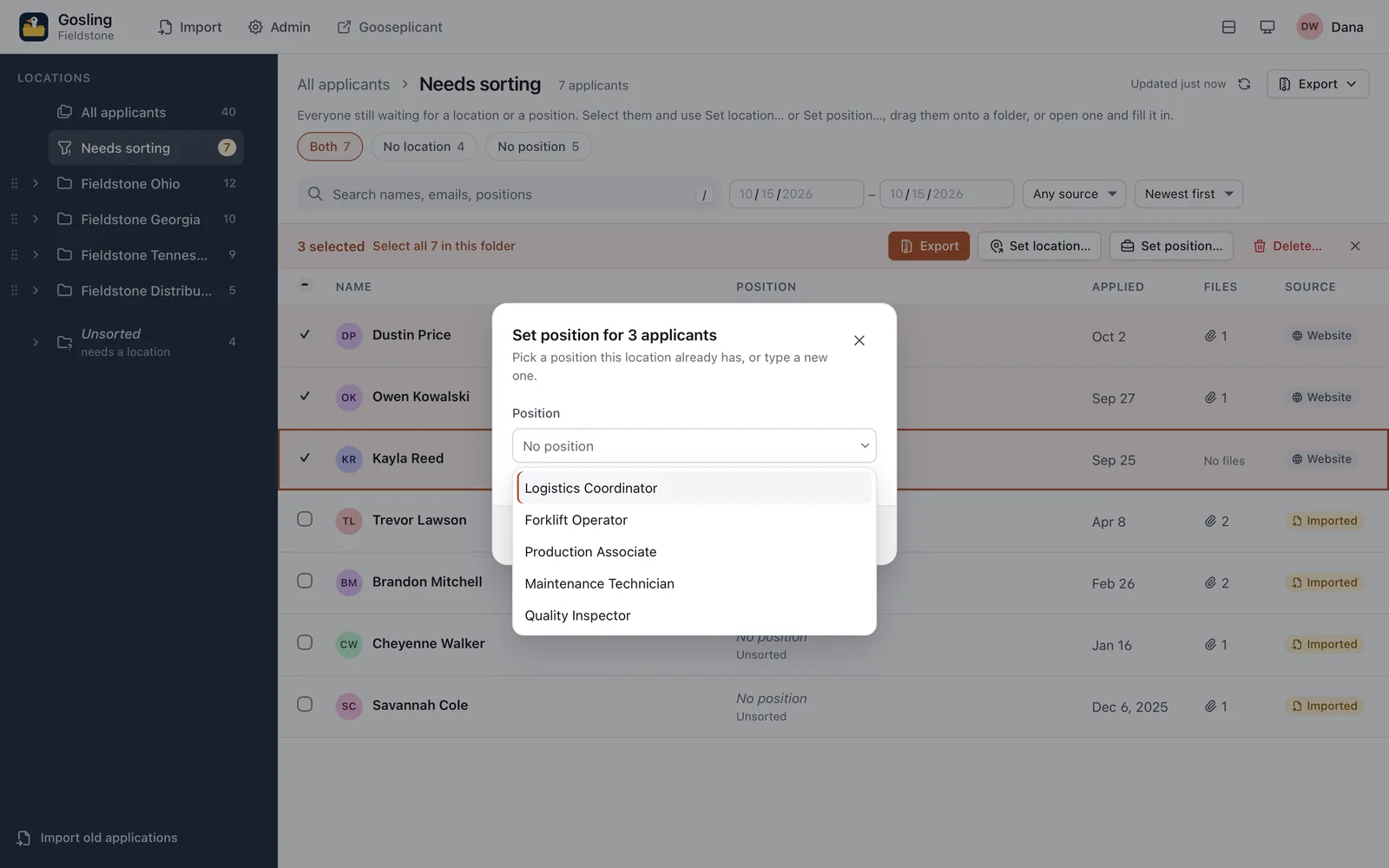
- A selection: select applicants, then Set location… (m) to pick one location for all of them, or Set position… (p) to give them one position. The position box lists the positions their location already has first, then every other one you use; type to filter, or type something new to start a new position folder. Leave it empty and press Clear position to move them to No position. With nothing selected, the shortcuts act on the highlighted applicant.
- The applicant pane: Location is a dropdown and Position the same box as above, right under the contact details. Picking a location saves it; for the position, Enter or leaving the box saves and Esc backs out. A small Needs a location or Needs a position chip shows what's missing.
- Drag onto a folder (mouse or pen): press on a row (anywhere but its checkbox) and drag. The row, or the whole selection when the row is part of it, follows the pointer as “3 applicants”, and the tree outlines every folder you can drop on. Drop on a location to move them there (their position stays), on a position folder to set that location and position, or on No position to set that location and clear the position. Esc, or dropping anywhere else, cancels.
- On touch, a press on a row scrolls the list as usual, so use Set location… and Set position… in the selection bar instead. They work from the keyboard too.
Moving someone to another location also unlinks a job that belonged to the old location (in Gooseplicant). Only real changes are logged: filing someone where they already are does nothing.
Ordering positions#
Admins decide the order of the position folders inside each location, the same way as locations: each position has a grip () once a location has more than one.
- Drag the grip (mouse or pen; on touch, press and hold first).
- Keyboard: Tab to the grip, Space or Enter to pick it up, ↑/↓ to move, Space or Enter to drop, Esc to cancel.
- Menu: the position's … menu has Move up and Move down.
No position always stays last. Positions you haven't placed follow the ordered ones, most used first, and a position keeps its place even while its folder is empty. The order is saved at once for everyone, offers Undo, and is audited as a settings change (sites.positionOrder).
Keyboard shortcuts#
Press ? in Gosling for the full list.
| Key | Does |
|---|---|
| ↓/↑ (or j/k) | Next / previous applicant |
| Shift+↓/↑ | Extend the selection |
| Enter | Open the highlighted applicant |
| Space | Select or deselect the highlighted applicant |
| Ctrl/⌘+A | Select everyone shown |
| m | Set the location (Set location…) |
| p | Set the position (Set position…) |
| r | Refresh |
| Esc | Close the applicant, or clear the selection |
| / | Search this folder |
Selecting, m and p are for recruiters and admins.
Reading resumes#
PDFs open inline in the applicant pane, and you choose how much room they get. The same works in Gooseplicant's candidate drawer.
- A wider pane: drag the pane's inner edge (between the list and the pane) to make it wider or narrower. With the keyboard, focus the edge and use ←/→. Double-click it to go back to the default width.
- A taller preview: drag the bar under the inline PDF, or focus it and use ↑/↓.
- Expand opens the PDF in a large overlay; Esc closes it.
Your sizes are remembered in this browser, so the next applicant opens the way you left it.
Reorder locations#
Admins decide the order locations are listed in. Next to each location in the left bar is a grip (); it's there for admins only.
- Mouse or pen: press the grip and drag. A line shows where the location will land, the bar scrolls by itself near its edges, and Esc cancels.
- Touch: press and hold the grip briefly, then drag. A quick swipe still scrolls the list.
- Keyboard: Tab to the grip, Space or Enter to pick the location up, ↑/↓ (or Home/End) to move it, Space or Enter to drop, Esc to cancel. Screen readers hear every step, like “Fieldstone Ohio, moved to position 2 of 4”.
- Menu: the location's … menu has Move up and Move down.
The new order is saved at once and applies everywhere, for everyone: Gosling's left bar and every location picker, in Gosling and in the HR app. The toast offers Undo. If someone changed the locations while you were moving them, you get the latest list and try again. Each change is recorded in the audit log as a settings change (sites.order).
The order belongs to this action alone: saving location details under Admin → Locations (or Settings → Sites in Gooseplicant) never changes it, and new locations are added at the end, ready to drag into place.
Delete many applicants at once#
For right-to-erasure requests that cover many people, or clearing out a batch imported by mistake. Admins only.
- Select the applicants
Checkboxes, shift-click for a range, or Select all N in this folder. The selection bar shows Delete… next to Export, Set location… and Set position….
- Read the confirmation
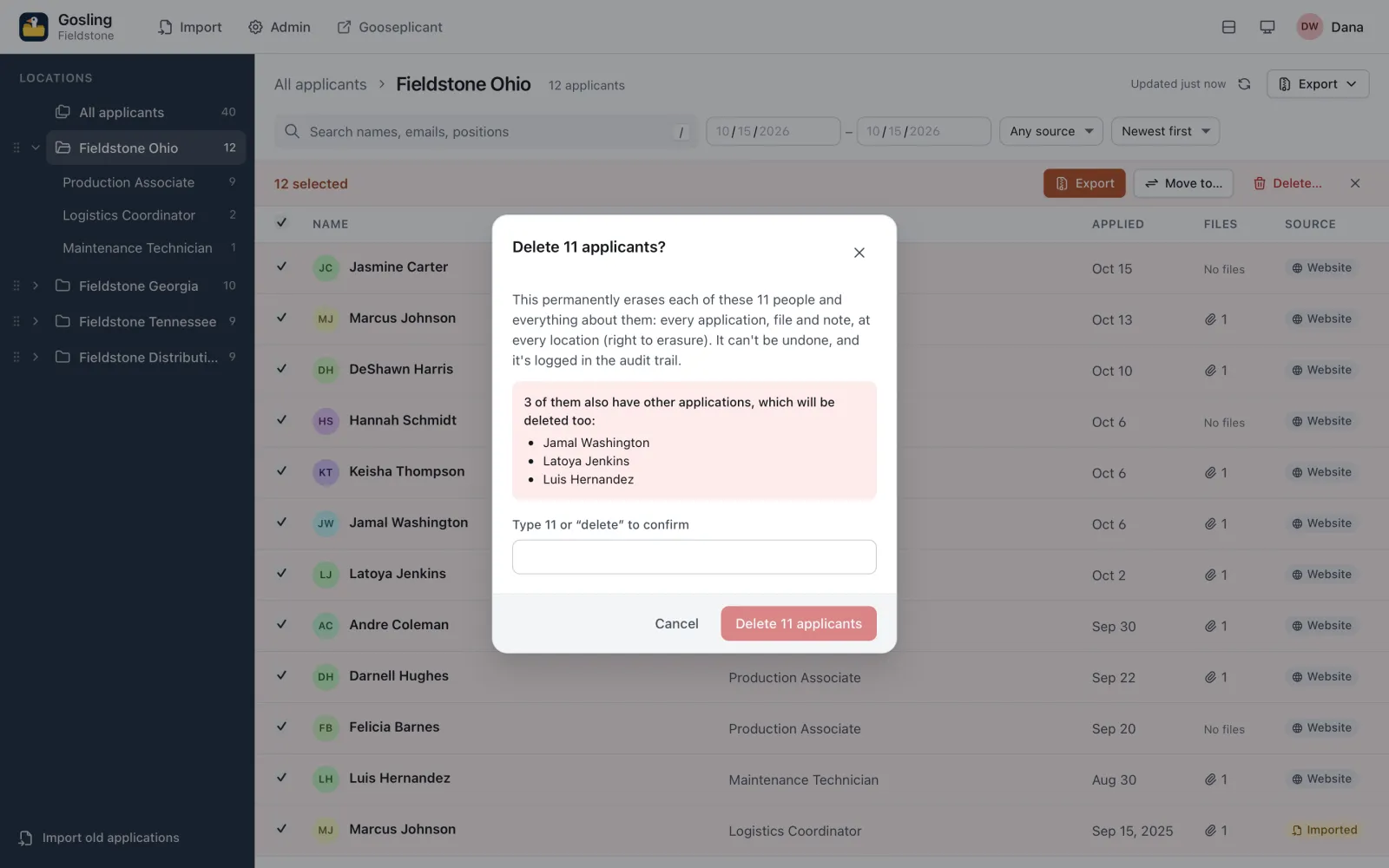
Delete N applicants? says exactly what goes: each person and everything about them, every application, file and note, at every location. It can't be undone, and it's logged. People who also have applications outside your selection are named (“2 of them also have other applications, which will be deleted too”), because erasure is per person, not per row.
- Confirm
From 10 people up, type the number (or
delete) to unlock the button. Large selections go out in batches with a progress bar (Deleting… 200 of 640); the list doesn't refresh underneath meanwhile.
Each person is erased exactly as if you had deleted them one by one: files first, then the person with all their applications, files, notes and activity, and their search entries, with one audit entry per person. Someone who was already gone (deleted elsewhere a moment ago) simply counts as gone. If something fails partway, what was deleted stays deleted and the rest stay selected, so you can try again. There is no undo: erasure is final.
Gooseplicant's inbox has the same action in its bulk bar (Delete…), with the same confirmation. See Right to erasure.
Refresh, and new applications#
The list keeps itself current without reloading the page, and never moves under your cursor.
- Refresh button at the top right of the list, or r. Beside it, Updated 2 minutes ago says when the list was last checked.
- A quiet check every minute while the tab is visible, and right away when you come back to a tab that's been in the background. It pauses while a dialog is open, while a location, a position or applicants are being dragged and while a bulk delete runs. Failed background checks stay silent; after three in a row the note says Offline, retrying until one works.
- New applications appear at once when you're at the top of the list with nothing selected. Otherwise a pill (3 new applicants waddled in · show) waits above the list until you click it; folder counts update either way.
Gooseplicant's inbox works the same way, with a 3 new applications · show pill.
Set the edition#
EDITION accepts exactly full or lite (lowercase). Unset or empty means full. Anything else is a configuration error: Node.js and Docker refuse to start and name the variable, and a Worker answers with a generic 500 and logs the variable name until it is fixed.
Docker#
Add it to the ats service's environment in docker-compose.yml, then recreate the container:
    environment:
      PUBLIC_URL: https://ats.example.com
      EDITION: lite
# ...the rest as beforedocker compose up -dNode.js#
Add a line to your environment file (for example /etc/ats/ats.env) and restart the service:
EDITION=litesudo systemctl restart atsCloudflare#
The shipped apps/cloudflare/wrangler.toml already has the variable under [vars]. Change it and deploy:
[vars]
EDITION = "lite"npm run deploy -w @ats/cloudflareYour Cloudflare Access application for the ats path already covers /ats/lite/; nothing changes there.
URLs#
| Path | What |
|---|---|
/ats/ | The HR app (full), or a redirect to Gosling (lite). |
/ats/lite/ | Gosling, in both editions. Sign-in is the same as for the HR app. |
/ats/api/* | The JSON API. In lite, only the routes Gosling uses. |
/ats/ingest | The signed intake your website posts to, in both editions. See Connect a form. |
What lite switches off#
- Web app:
/ats/and every HR-app path redirect to/ats/lite/. - API: routes only the HR app uses answer
404with the codenot_in_edition(after sign-in, so they reveal nothing to strangers). Editing an application is limited to its location and position. Saving settings refuses pipeline stages, email templates and the full-only modules. - Modules: only
auditandretentionrun. Talent-pool suggestions, candidate email and HR notifications are off, whatever is stored in Settings.
What stays on in lite: sign-in and roles, locations, users, the brand theme, sensitive fields, reveal, file downloads, CSV and zip export, import, deleting a person, the audit log and the signed intake from your website.
Upgrade from Gosling to Gooseplicant#
- Set
EDITION=fullOr remove the variable;
fullis the default. Restart the container or service, or deploy the Worker, as above. - That's it
Both editions use the same database, so nothing is migrated, re-imported or re-uploaded. Applications collected in Gosling start in the first pipeline stage (by default New), ready to move. Gosling stays available at
/ats/lite/. - Turn on what you need
In Settings → Modules, switch on candidate email or HR notifications once mail is configured, and review Pipeline stages and Email templates. See Modules.
Going the other way works too: with EDITION=lite the full-only features are hidden and paused, not deleted, and they come back when you switch to full again.